How to Protect Your Privacy Online in 2026
Last Updated: September 2026
How to Protect Your Privacy Online in 2026
Data brokers, AI-powered tracking, and increasingly sophisticated scams have made online privacy harder to maintain than ever. But with the right habits and tools, you can take back meaningful control — without becoming a tech expert.
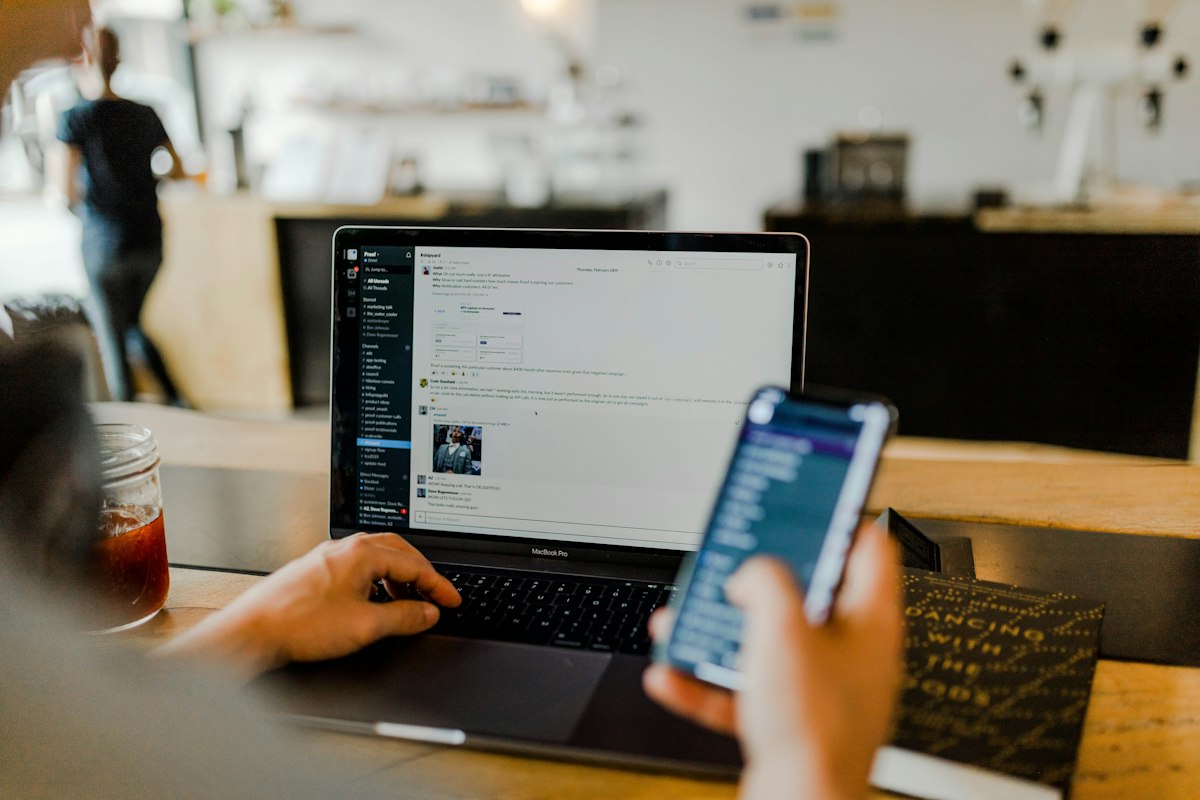
In 2026, protecting your privacy online is not about paranoia — it is about being realistic. Tech companies collect your data at scale, data breaches happen regularly, and AI tools can now synthesize personal information faster than ever. The goal is not total invisibility; it is reducing your exposure to the threats that are most likely to affect you.
Here are 12 practical steps, ordered from highest to lowest impact.
1. Use a Password Manager
Reusing passwords is the single biggest security mistake most people make. If one site is breached, attackers test those credentials everywhere else — this is called credential stuffing, and it works disturbingly well.
A password manager generates and stores unique, complex passwords for every account. You only need to remember one master password. Top options in 2026 include Bitwarden (free, open-source), 1Password, and Proton Pass. All three offer browser extensions and mobile apps.
2. Enable Two-Factor Authentication (2FA) Everywhere
Two-factor authentication adds a second verification step beyond your password. Even if someone steals your password, they cannot access your account without also having your second factor. Enable it on your email, banking, social media, and cloud storage accounts first — these are the highest-value targets.
1. Hardware key (YubiKey) — most secure
2. Authenticator app (Google Authenticator, Authy) — highly secure
3. SMS code — better than nothing, but vulnerable to SIM-swapping
3. Switch to a Privacy-Focused Browser
Your browser sees everything you do online. Chrome is the most popular browser, but it also feeds data back to Google. Privacy-focused alternatives include:
- Firefox — open-source, highly customizable, with strong privacy defaults
- Brave — built-in ad and tracker blocking, based on Chrome for compatibility
- LibreWolf — Firefox fork with privacy hardened out of the box
Whichever browser you use, install the uBlock Origin extension. It blocks ads and trackers more effectively than any built-in protection.
4. Use a Private Search Engine
Google keeps a detailed record of every search you perform, tied to your account and IP address. Privacy-first alternatives include DuckDuckGo, Brave Search, and Startpage (which uses Google results without the tracking). For most everyday searches, these work just as well.
5. Review Your App Permissions
Many apps request access to your location, contacts, microphone, and camera — far beyond what they need to function. Go through your phone settings and revoke permissions that do not match the app's purpose. A recipe app does not need your location. A flashlight app does not need your contacts.
6. Use End-to-End Encrypted Messaging
Standard SMS messages and most chat apps are not encrypted in a way that prevents third parties from reading them. Use Signal for private conversations — it is widely considered the gold standard for encrypted messaging. WhatsApp uses the same encryption protocol but is owned by Meta, which collects metadata. For email, ProtonMail and Tutanota offer end-to-end encryption by default.
7. Audit Your Social Media Privacy Settings
Most social platforms default to maximum data sharing. Take 20 minutes to go through privacy settings on every platform you use. Limit who can see your posts, turn off location sharing, opt out of ad personalization, and remove any connected third-party apps you no longer use.
8. Use a VPN on Public Wi-Fi
A VPN encrypts your internet connection and hides your traffic from the network you are using. This is most valuable on public Wi-Fi (airports, cafes, hotels) where attackers can intercept unencrypted traffic. Reputable VPNs in 2026 include Mullvad (no-logs, accepts cash), ProtonVPN, and IVPN. Avoid free VPNs — many monetize your data instead of protecting it.
9. Opt Out of Data Broker Databases
Data brokers collect and sell personal information — your name, address, phone number, relatives, and sometimes financial data — to anyone willing to pay. Services like DeleteMe, Incogni, or Kanary automate the opt-out process across hundreds of data brokers. It is not a one-time fix, but it significantly reduces your data footprint over time.
10. Keep Your Software Updated
Outdated software is one of the most common attack vectors. Security patches fix vulnerabilities that attackers actively exploit. Enable automatic updates for your operating system, browser, and all apps. This single habit closes more security gaps than most other steps combined.
11. Be Skeptical of Phishing Attempts
In 2026, AI-generated phishing emails and text messages are significantly harder to detect than traditional scams. They are personalized, grammatically correct, and increasingly convincing. The rule: never click links in unsolicited messages. Go directly to the site instead. Verify requests for sensitive information through a separate channel.
12. Regularly Check for Data Breaches
Visit haveibeenpwned.com to check whether your email address has appeared in any known data breach. If it has, change the password for that account immediately (and everywhere you reused it). Consider signing up for breach alerts so you are notified automatically in the future.
| Step | Effort | Impact |
|---|---|---|
| Password Manager | Low (30 min setup) | Very High |
| 2FA on key accounts | Low | Very High |
| Privacy browser + uBlock | Low | High |
| App permission audit | Medium | High |
| Data broker opt-out | Low (with service) | Medium-High |
| Encrypted messaging | Low | High (for sensitive comms) |
FAQ — Online Privacy
What is the most important step to protect your privacy online?
Using a password manager and enabling two-factor authentication on all major accounts is the single highest-impact combination. It prevents the vast majority of account takeovers and data breaches.
Should I use a VPN for privacy?
A VPN is useful on public Wi-Fi and hides your browsing from your internet provider. However, it does not make you anonymous online and cannot protect you from tracking by websites or apps you use.
Is incognito mode private?
Incognito mode only prevents your browser from saving history locally. It does not hide your activity from your internet provider, employer, or the websites you visit.
How do I stop apps from tracking me?
On iPhone, use App Tracking Transparency to deny tracking requests. On Android, limit ad ID access in privacy settings. Use a privacy-focused browser like Firefox or Brave with uBlock Origin installed.
Final Thoughts
You do not need to implement all 12 steps at once. Start with a password manager and 2FA — these two changes alone will put you ahead of the vast majority of internet users. Then work through the rest at your own pace. Privacy is not a destination; it is an ongoing practice of small, consistent decisions.


Comments
Post a Comment